Most TVs leave the factory set up to grab attention in a brightly lit showroom: colours turned up, sharpness pushed and motion smoothing switched on. At home, those settings make 4K IPTV look artificial. Ten minutes in the picture menu fixes that. This guide walks you through each setting in order, in plain English.
Before you start
A few quick checks make sure you are adjusting the TV, not compensating for a different problem:
- Confirm you are watching a 4K source. Not every channel broadcasts in 4K. Choose a 4K channel or title before you start adjusting.
- Check your connection. A stream that keeps dropping quality will look soft no matter what you set. We recommend at least 25 Mbps for 4K, measured on the TV or box.
- Update the TV’s software. Firmware updates often improve picture processing.
- Watch in your usual lighting. Settings that look right at midnight may look dim on a sunny afternoon, so adjust in the conditions you normally watch in.
Menu names vary between manufacturers, so look for the closest match to the names below.
Step 1: choose the right picture mode
The picture mode is the most important setting, because it changes many others at once.
- Avoid “Vivid”, “Dynamic” or “Store” modes. They exaggerate colour and brightness and crush detail.
- Choose “Movie”, “Cinema”, “Filmmaker” or “Calibrated”. These aim to show the picture as it was made, with natural skin tones and realistic colour.
- “Standard” is a reasonable middle ground for bright rooms if the cinema-style modes look too dim.
Many TVs let you set the picture mode separately for each input and app, so make sure you are adjusting the one you use for IPTV.
Step 2: tame motion smoothing
Motion smoothing (sometimes called motion interpolation) creates extra frames between the real ones. It is the cause of the “soap opera effect” that makes films look like cheap video.
- For films and series: switch it off, or set it to its lowest level.
- For live sport: a low setting can make fast pans look smoother. Try it on and off during a match and keep whichever you prefer.
Step 3: sharpness and noise reduction
It sounds backwards, but turning sharpness up usually makes a 4K picture look worse. High sharpness adds artificial outlines around edges and makes fine detail look harsh.
- Sharpness: set it to zero or the lowest value, then raise it a step at a time only if the picture looks soft. On many TVs, the ideal is zero or very close to it.
- Noise reduction: turn it off or to low for 4K content. It is meant for poor-quality sources and can smear real detail in a clean 4K stream.
Step 4: brightness, contrast and backlight
These three settings are often confused:
- Backlight (or “OLED light” or “panel brightness”) controls how bright the whole screen is. Raise it for a sunny room, lower it for evening viewing.
- Brightness controls how dark the darkest parts of the picture are. Too high and blacks look grey; too low and you lose detail in shadows. Find a dark scene and adjust until you can just see detail in the shadows.
- Contrast controls the brightest parts. Too high and bright areas lose detail, such as clouds becoming flat white. Leave it near the default for your chosen picture mode.
If your TV faces large windows, consider a separate “day” and “night” setting. Many TVs can adjust backlight automatically using a light sensor, which works well in rooms that change a lot through the day.
Step 5: colour and colour temperature
- Colour temperature (or “white balance”): choose “Warm” or “Warm 1/Warm 2”. It looks slightly yellow at first compared with the blue-ish “Cool” setting, but it is much closer to how films and TV are made. Give your eyes a day to adjust.
- Colour (saturation): leave it at the default for your picture mode. If faces look orange or sunburnt, lower it a little.
- Tint: leave at the default unless skin tones look green or magenta.
Step 6: HDR settings
HDR (high dynamic range) allows brighter highlights and deeper shadows in content that supports it. Your TV switches into HDR automatically when it receives an HDR signal.
- Make sure HDR is enabled on the input you use. If you use an external box, look for a setting called “enhanced HDMI”, “HDMI UHD colour” or similar for that HDMI port.
- Check the HDR picture mode separately. Most TVs keep different settings for HDR and standard content. Apply the same principles: a cinema-style mode, warm colour temperature, low sharpness.
- Dynamic tone mapping can help HDR look brighter on TVs with limited peak brightness. Try it on and off.
Step 7: aspect ratio and overscan
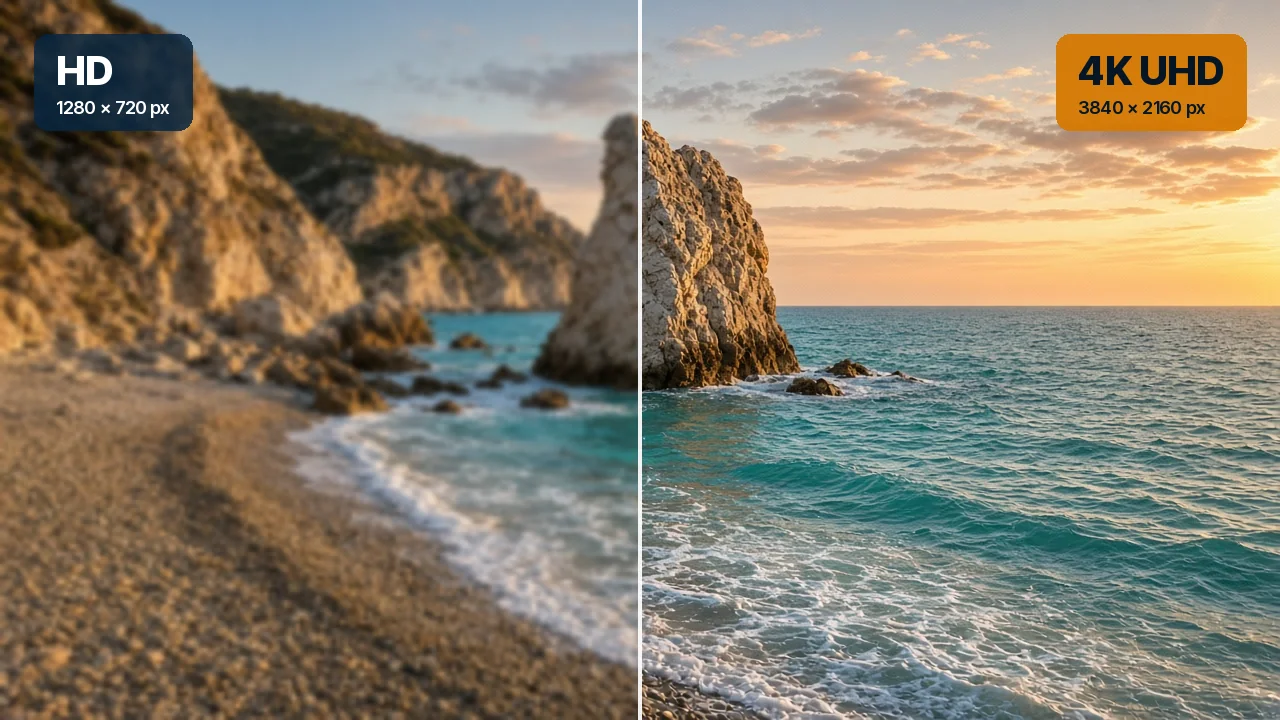
Some TVs crop the edges of the picture by default, a leftover from older broadcast standards. For 4K that throws away detail and slightly blurs the image.
Look for a picture size setting called “Just Scan”, “Screen Fit”, “Full Pixel” or “Original” and select it. The picture should fill the screen without any edges cut off.
Settings on your player box or stick
If you watch through an external device rather than the TV’s own app, check these settings on the device too:
- Resolution: set to 4K (2160p) or “Auto”, not 1080p.
- Match frame rate: if available, switch it on. It lets the TV display content at its original frame rate, which reduces judder.
- Match dynamic range: if available, switch it on so HDR is used only when the content is HDR.
- HDMI cable: use a Premium High Speed or Ultra High Speed HDMI cable for 4K HDR.
Don’t forget the sound
- Dialogue enhancement or “clear voice”: helpful if speech is hard to follow over music and effects.
- Audio delay or lip sync: if voices do not match lips, adjust the audio sync setting on the TV, soundbar or player app.
- Soundbar connection: use the HDMI port marked ARC or eARC for the best sound and a single remote.
Quick reference: recommended starting points
| Setting | Starting point | Why |
|---|---|---|
| Picture mode | Movie, Cinema or Filmmaker | Closest to how the content was made |
| Motion smoothing | Off (low for sport) | Avoids the soap-opera effect |
| Sharpness | 0 or lowest | Prevents artificial outlines |
| Noise reduction | Off or low | Keeps real 4K detail |
| Colour temperature | Warm | Natural whites and skin tones |
| Backlight | To suit the room | Brighter by day, lower at night |
| Picture size | Just Scan / Screen Fit | Shows the full picture |
Frequently asked questions
Why does my 4K picture still look soft?
Check that the channel is broadcasting in 4K, that sharpness and noise reduction are low, and that your connection is fast enough. On Wi-Fi, the app may lower quality to avoid buffering; a cable often fixes it.
Should I use the same settings for sport and films?
Mostly yes, but many people like a low level of motion smoothing for fast-moving sport. Some TVs have a dedicated sports mode; try it, but turn down any exaggerated colour.
Do these settings work on 8K TVs?
Yes. The same principles apply. See our page on 8K IPTV in Cyprus for the extra requirements for 8K.
Every IPTV Cyprus plan streams in HD, 4K and 8K, so once your TV is set up properly you will see the difference straight away. If you are choosing a new TV or wondering about 8K, read what you need for 8K IPTV. Compare plans on our IPTV packages page, contact us with any question, or go back to IPTV Cyprus.