If your IPTV picture freezes, drops in quality or takes a long time to start, the cause is very often not your internet line but the last few metres between the router and the TV. Choosing between Wi-Fi and an Ethernet cable is the single biggest decision in a home IPTV setup. Here is how to get it right.
Why the connection to your TV matters so much
Browsing the web or sending messages can cope with brief hiccups: a page loads a fraction of a second later and you never notice. Live TV is different. A stream needs a steady flow of data, second after second, for hours. Three things decide whether it gets one:
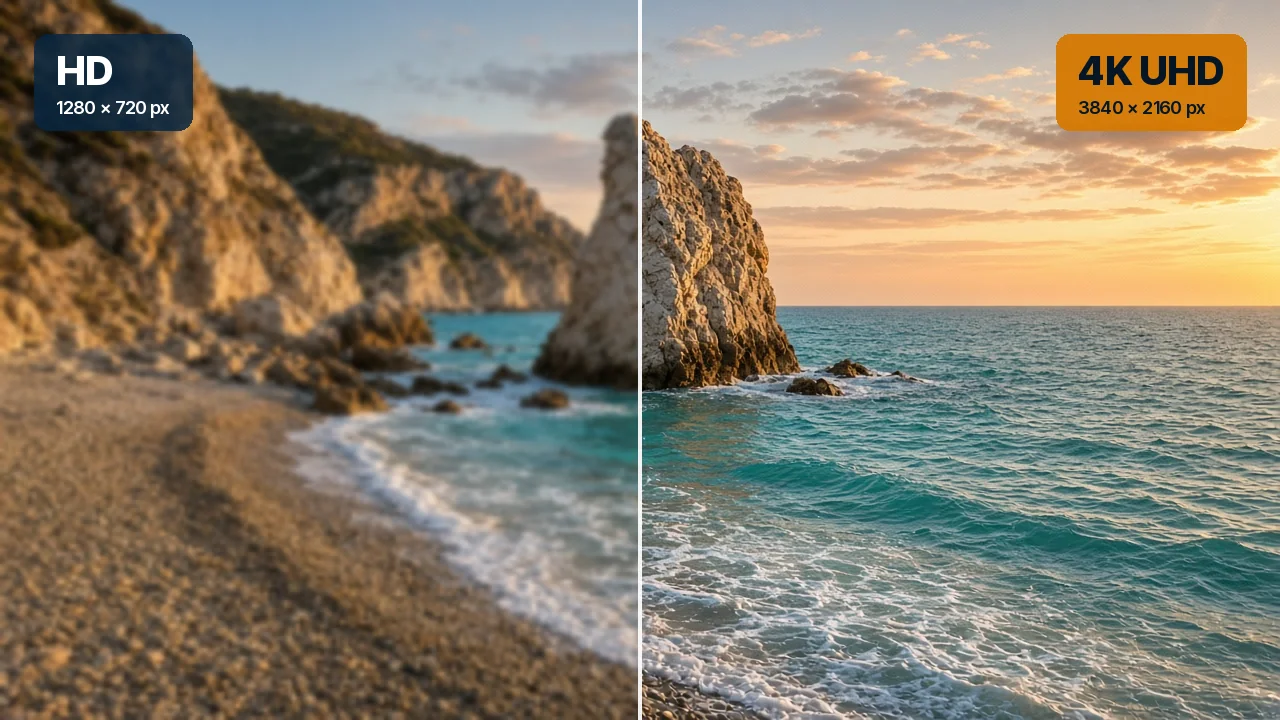
- Speed: how much data can arrive each second. We recommend at least 10 Mbps for HD, 25 Mbps for 4K and 50 Mbps for 8K.
- Consistency: whether that speed holds steady or keeps dipping. A connection that averages 40 Mbps but regularly drops to 5 Mbps will freeze.
- Reliability: whether small pieces of data go missing on the way and have to be sent again.
Ethernet wins on consistency and reliability. Wi-Fi can match it on speed in the right conditions, but it is far more affected by walls, distance and neighbours.
Ethernet: the reliable choice
An Ethernet cable runs directly from a spare port on your router to the network port on your TV, box or computer.
Advantages
- Consistent speed that does not change when someone walks between the router and the TV.
- No interference from neighbouring networks, microwaves or thick walls.
- Simple to set up: plug it in and it works, with no passwords to enter.
Disadvantages
- You need to run a cable, which can be awkward between rooms or floors.
- Some streaming sticks have no network port and need a small adapter.
Which cable? A Cat 5e or Cat 6 cable is plenty for any IPTV stream, including 8K. Flat cables are easy to tuck under rugs or along skirting boards, and longer lengths are inexpensive.
Wi-Fi: convenient, but sensitive
Wi-Fi is the default for most streaming devices, and in many homes it works well. Its weaknesses show up with distance, obstacles and busy airwaves.
2.4 GHz vs 5 GHz
Most routers broadcast two networks, sometimes with the same name:
- 5 GHz is faster and less crowded, but its signal does not travel as far or pass through walls as well. It is the better choice for a TV in the same room as the router, or one room away.
- 2.4 GHz reaches further and passes through walls more easily, but it is slower and shared with many other devices, including neighbours’ networks.
Newer Wi-Fi standards (Wi-Fi 6, 6E and 7) handle many devices at once better than older ones. If your router is several years old, an upgrade can make a noticeable difference.
What weakens Wi-Fi
- Thick stone or concrete walls, which are common in older Cypriot houses and villas.
- Routers placed in cupboards, behind TVs or at floor level.
- Distance, especially across floors.
- Busy networks in apartment blocks, where dozens of routers compete for the same channels.
Wi-Fi vs Ethernet at a glance
| Factor | Ethernet | Wi-Fi |
|---|---|---|
| Stability | Excellent | Varies with distance and walls |
| Speed | Full speed of your line | Can match it close to the router |
| Interference | None | Neighbours, appliances, walls |
| Setup | Run a cable | Enter a password |
| Best for | Main TV, 4K and 8K | Phones, tablets, rooms near the router |
When a cable is not practical: the alternatives
If you cannot run a cable to the TV, there are good middle-ground options:
Mesh Wi-Fi
A mesh system replaces or extends your router with two or three units placed around the home. They work together as one network, so the TV connects to whichever unit is nearest. Mesh is excellent for larger homes, villas and multi-floor houses.
Powerline adapters
Powerline adapters send the network signal through your home’s electrical wiring. You plug one into a socket near the router and another near the TV, then connect each to its device with a short Ethernet cable. Results depend on your wiring, but they are often better than weak Wi-Fi. Plug them directly into wall sockets rather than extension leads.
A wired access point
If you can run one cable to a central point, such as a hallway or the top of the stairs, a wireless access point there can provide strong Wi-Fi to the rooms around it.
Avoid basic range extenders where possible
Simple plug-in extenders repeat a weak signal and often halve the speed. They can help in a pinch, but mesh or powerline usually does a better job for streaming.
Home network setup guide for IPTV
- Find the best spot for your router. Central, raised and in the open, not in a cupboard or behind the TV.
- Connect your main TV by cable if at all possible. This is the one change that fixes the most problems.
- Put other devices on 5 GHz Wi-Fi if they are close to the router, and 2.4 GHz only for distant rooms.
- Add mesh or powerline for far rooms rather than relying on a basic extender.
- Update your router’s firmware and restart it every few weeks.
- Schedule big downloads for overnight: game updates, cloud backups and large files compete with your stream.
- Test where you watch, as described below.
Setups that suit typical Cypriot homes
City apartment
Usually compact, so the router is often close to the TV. A short Ethernet cable is the simplest solution. If not, use 5 GHz Wi-Fi and choose a less crowded channel in the router settings, since apartment blocks have many overlapping networks.
Villa or older stone house
Thick walls block Wi-Fi badly. A mesh system with a unit in the TV room, or powerline adapters, usually works best. Run a cable to the main TV if renovation allows.
Townhouse over several floors
Wi-Fi struggles to go up and down through floors. Put a mesh unit on each floor, or use powerline to carry the signal between floors.
Holiday home
Keep it simple and robust: a cable to the main TV and a router that reconnects on its own after a power cut. Our guide to IPTV for holiday homes in Cyprus has more tips.
How to test your setup
- Test on the device you watch on. Many TVs have a network test in their settings. Otherwise, use a phone held next to the TV on the same Wi-Fi network.
- Test at the time you usually watch. Evening speeds can be lower than daytime ones.
- Compare Wi-Fi and cable. If you can, test once on Wi-Fi and once with a temporary cable. A big difference tells you Wi-Fi is the bottleneck.
- Watch for consistency. Run a few tests. Large swings between results matter more than the single highest number.
Frequently asked questions
Is Ethernet always better than Wi-Fi for IPTV?
For stability, yes. But if your TV is close to a modern router on 5 GHz Wi-Fi and your tests show steady speeds above our recommendations, Wi-Fi can work perfectly well.
Can I use Wi-Fi for 8K?
It is possible with a modern router close to the TV, but a cable is strongly recommended for 8K. See our page on 8K IPTV in Cyprus.
Will a faster internet package fix freezing?
Only if your line is the bottleneck. If the problem is weak Wi-Fi at the TV, a faster package will not help, but a cable or mesh system will.
Every IPTV Cyprus plan includes our Anti-Freeze System, which handles the server side of smooth streaming. A good home network takes care of the rest. Compare plans on our IPTV packages page, contact us if you would like help with your setup, or go back to IPTV Cyprus.